Click here to see how to set up your search.
Wednesday, June 26, 2013
Locating Nursing Journal Articles with Specific Geographic Locations
Do you need to locate an article from a nursing journal which needs to be current and from a specific geogrpahic location? No problem - EBSCO CINAHL Plus with Full Text can handle that.

Wednesday, February 27, 2013
Primary Sources Part II
Primary Sources not only help bring history to life but also sharpen our critical thinking skills in the process. -
Library of Congress
Besides our databases (JSTOR, EBSCO), another great place to find Primary Sources is from the Web Resources area that is located on the Library (LRC) home page. Look at the left hand column, scrolling down from Library until you reach Web Resources. Opening this link takes you to a page that contains "Primary Sources for History" where you will find 11 different links to help you search for Primary Sources.
Here is an example using Library of Congress Chronicling America:
Enter search terms "Spanish Influenza" and 1918 to 1919
Here are your results:

Here is another example using History Matters: Many Pasts – George Mason University
Enter your search terms: Spanish Influenza

 Click on "Contagion: Historical Views of Disease and Epidemics" and then click on "Spanish Influenza in North America, 1918-1919
Check back for more LRC quick tips!
Library of Congress
Besides our databases (JSTOR, EBSCO), another great place to find Primary Sources is from the Web Resources area that is located on the Library (LRC) home page. Look at the left hand column, scrolling down from Library until you reach Web Resources. Opening this link takes you to a page that contains "Primary Sources for History" where you will find 11 different links to help you search for Primary Sources.
Here is an example using Library of Congress Chronicling America:
Enter search terms "Spanish Influenza" and 1918 to 1919
Here are your results:

Here is another example using History Matters: Many Pasts – George Mason University
Enter your search terms: Spanish Influenza

Here are your results:
 Click on "Contagion: Historical Views of Disease and Epidemics" and then click on "Spanish Influenza in North America, 1918-1919
Check back for more LRC quick tips!
Primary Sources
According to the Library of Congress, “Primary
Sources are the raw materials of history – original documents and objects which
were created at the time of study by people who had firsthand experience of the
event”. They can include newspapers, personal letters, editorials, photographs,
books, conference proceedings, speeches, newsletters, patents, movies, objects,
trade journals, paintings, art, and music.

Here are your results:

 Now open the article PDF:
Check back for more information on Primary Sources from the LRC.
"Primary sources give insight into events and
feelings about those events. They help broaden our understanding of historic
events, people, and places...[T]hey also improve our critical thinking skills
because we have to think about many different aspects of a primary source: who
created it, why it was created, what purpose it served, how it related to the
events of the time, etc."
But how do I find Primary Sources?
Either use our databases (JSTOR, EBSCO, Academic Onefile) or try the many web resources that are linked to
Library of Congress sites. These are found on the LRC home page under Library
on the left hand side of the page.
Example: The Spanish Influenza outbreak of 1918
JSTOR
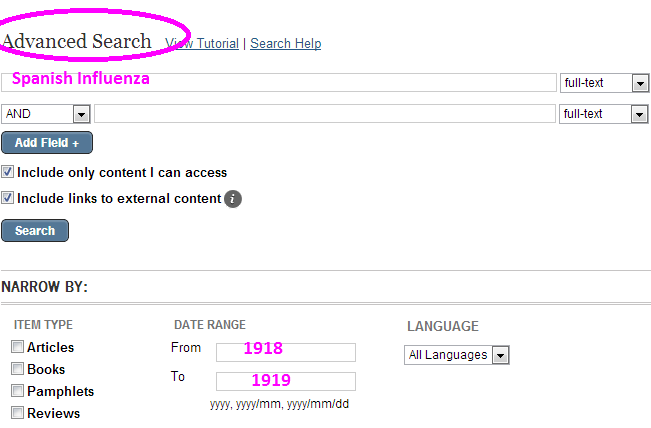
– Use the Advanced Search screen – then enter your search term(s) and the
appropriate dates. Remember, JSTOR does not allow for subject searching, so in this instance Spanish Influenza is searched
within the full-text of the article between the years 1918 to 1919. Limiting the search to this time frame ensures that any resources that are displayed are first-person accounts, and therefore primary sources.
This is what your search looks like:
Here are your results:

 Now open the article PDF:
Check back for more information on Primary Sources from the LRC.
Wednesday, December 5, 2012
Ebsco's PsycINFO
PsycINFO - one of the EBSCO databases - is a wonderful resource to use for searches related to psychology. An important thing to remember is that PsycINFO is a digitized collection of abstracts from professional journals. With that being said, most searches will not yield full text information. No problem! Just bring your citation information to the circulation desk and our staff will try to locate the full text of the article from another library.
Using LexisNexis to locate specific legal cases
Have you ever needed to find information about a legal case? Just use Lexis-Nexis Academic Universe.
Here is how:
If you are on campus, click on Lexis-Nexis Academic Universe which is located under the "General Databases" on the Online Databases page. If you are off-campus, be sure to click the link at the top of the page which states "If you are using a computer off-campus, please use this link instead"; log on with your credentials and then click on Lexis-Nexis Academic Universe.
Your screen will look like this. We are going to focus on the "Legal Case" area.

It will be easier to locate information if you know which jurisdiction your case falls under, state or federal.
Click here for more information about jurisdiction from the United States Courts.
If your case involves Federal Jurisdiction, include the United States of America as one of the parties. If your case involves State Jurisdiction, include the name of the state as one of the parties.
Here is an example:
To locate information on Bernie Madoff, use "United States of America" and "Madoff" within the parties area.

Here are the results:
Choose "oldest to newest" to read results in chronological order.

Click on the first entry to open:

Here is how you create the citation:
"Case Name." Case Citation (Date of publication). Name of database. Medium of publication
consulted. Date accessed.
"United States v. Madoff." 586 F. Supp. 2d 240 (2009). LexisNexis Academic. Web. Date Accessed:
2012/11/27.
Check back often for more LRC tips!
Here is how:
If you are on campus, click on Lexis-Nexis Academic Universe which is located under the "General Databases" on the Online Databases page. If you are off-campus, be sure to click the link at the top of the page which states "If you are using a computer off-campus, please use this link instead"; log on with your credentials and then click on Lexis-Nexis Academic Universe.
Your screen will look like this. We are going to focus on the "Legal Case" area.

It will be easier to locate information if you know which jurisdiction your case falls under, state or federal.
Click here for more information about jurisdiction from the United States Courts.
If your case involves Federal Jurisdiction, include the United States of America as one of the parties. If your case involves State Jurisdiction, include the name of the state as one of the parties.
Here is an example:
To locate information on Bernie Madoff, use "United States of America" and "Madoff" within the parties area.

Here are the results:
Choose "oldest to newest" to read results in chronological order.

Click on the first entry to open:

"Case Name." Case Citation (Date of publication). Name of database. Medium of publication
consulted. Date accessed.
"United States v. Madoff." 586 F. Supp. 2d 240 (2009). LexisNexis Academic. Web. Date Accessed:
2012/11/27.
Check back often for more LRC tips!
Friday, September 28, 2012
Searching for Evidence-Based Information
"Evidence-based medicine combines individual clinical expertise with the best external evidence and patient and family choice to provide optimal care." - D. Sackett
But how do I find Evidence-Based Information?
A good place to search for evidence-based information is within Ebschohost's CINAHL Plus with Full-Text (which is an online database that is found on our home page). Click on EBSCO, then select CINAHL Plus with Full-Text and continue.
Use the Advanced Search screen and scroll down to choose these limiters:
Publication Type: Systematic Review
Special Interest: Evidence-Based Practice
Then enter your search terms, (being sure to select the type of search term you are using), and select search.
Here is an example:
Let's assume that we are interested in finding evidence-based information about stress management in nursing students.
Select CINAHL Plus with Full-Text in EBSCOHOST and go to Advanced Search. This is the screen that you will see.

Scroll down and choose Systematic Review and Evidence-Based Practice


But how do I find Evidence-Based Information?
A good place to search for evidence-based information is within Ebschohost's CINAHL Plus with Full-Text (which is an online database that is found on our home page). Click on EBSCO, then select CINAHL Plus with Full-Text and continue.
Use the Advanced Search screen and scroll down to choose these limiters:
Publication Type: Systematic Review
Special Interest: Evidence-Based Practice
Then enter your search terms, (being sure to select the type of search term you are using), and select search.
Here is an example:
Let's assume that we are interested in finding evidence-based information about stress management in nursing students.
Select CINAHL Plus with Full-Text in EBSCOHOST and go to Advanced Search. This is the screen that you will see.


Now enter your search terms:
Use quotations around stress management to search the term as a phrase.
Be sure to select the type of search term you are using.

Here are the results:

Open by clicking on PDF Full-Text:

Check back for more LRC quick tips!
Friday, May 11, 2012
Using Literature Resource Center
Have you ever needed to find information about a poet or specific work? Just use Gale's Literature Resource Center.
Here is how:
If you are on campus, click on Literature Resource Center which is located under the "Subject Databases" on the Online Databases page. If you are off-campus, be sure to click the link at the top of the page which states "If you are using a computer off-campus, please use this link instead"; log on with your credentials and then click on Literature Resource Center.
The screen will look like this:


Here is how:
If you are on campus, click on Literature Resource Center which is located under the "Subject Databases" on the Online Databases page. If you are off-campus, be sure to click the link at the top of the page which states "If you are using a computer off-campus, please use this link instead"; log on with your credentials and then click on Literature Resource Center.
The screen will look like this:

For our example, we will use William Cullen Bryant.
Select "Person Search" and enter your search terms:

Here are the results:

Clicking on the results brings this screen up: (Choose Biographies to learn more about this author.)

Here are the results:

Check back often for more quick tips!
Tuesday, May 8, 2012

Tuesday, May 1, 2012
Using LexisNexis Academic to locate movie reviews
If you need to locate a movie review, try using LexisNexis Academic.
To find LexisNexis Academic, if you are on campus, go to the Online Databases page and select the link for LexisNexis Academic. If you are off-campus, be sure to select the link for off-campus at the top of the page; type in your credentials, and then select the link for LexisNexis Academic.
The opening screen will look like this:

From the opening screen, select News from the left hand side:

Then, select All News:

Now, add your search terms and change the pull down boxes to look like this:
(Notice that "In Same Sentence As" was chosen as a connector. This means that we are searching for
the phrase "Hunger Games" and movie review within the same sentence. We will also select "Headline or Lead" from the pull down boxes which will find our search terms from a Headline or Lead story.)

Here are the results:

Choose the title and click to read the full text:

Be sure to check back for future tips on searching the databases and more about connectors (Boolean Operators)!
For this example, we will search for a review for the movie "Hunger Games".
To find LexisNexis Academic, if you are on campus, go to the Online Databases page and select the link for LexisNexis Academic. If you are off-campus, be sure to select the link for off-campus at the top of the page; type in your credentials, and then select the link for LexisNexis Academic.
The opening screen will look like this:

From the opening screen, select News from the left hand side:
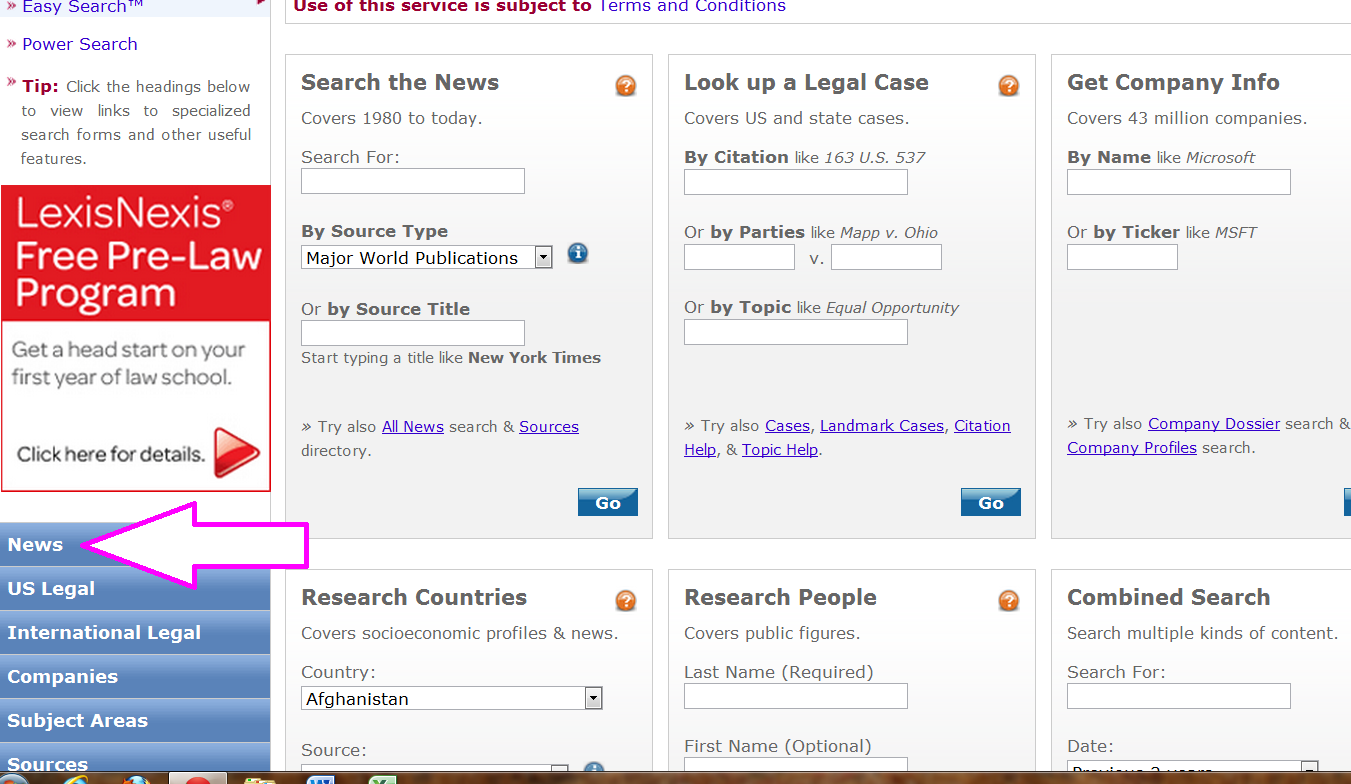
Then, select All News:

Now, add your search terms and change the pull down boxes to look like this:
(Notice that "In Same Sentence As" was chosen as a connector. This means that we are searching for
the phrase "Hunger Games" and movie review within the same sentence. We will also select "Headline or Lead" from the pull down boxes which will find our search terms from a Headline or Lead story.)

Here are the results:

Choose the title and click to read the full text:

Be sure to check back for future tips on searching the databases and more about connectors (Boolean Operators)!
Monday, April 9, 2012
Getting the most out of your EBSCOhost search
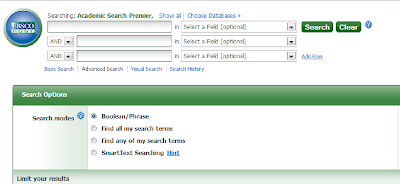
To get the most out of your time and your search, be sure to use the Advanced Search within EBSCOhost. Within Advanced Searching, there are different boxes (limiters) to check to narrow your search and make your search more effective; as well as, more than one search box to search multiple search terms at once.

The Advanced Search screen is shown below: (Click on image to enlarge.)
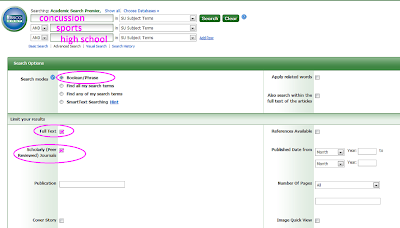
Now, let's input our search terms and check the limiters that apply: (Click on image to enlarge.)
For our example, 9 results were found: (Click on image to enlarge.)
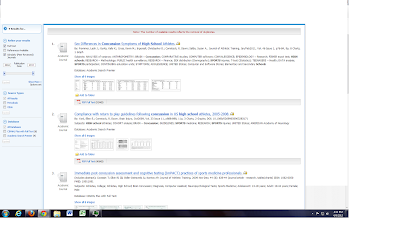
The 3rd article looks interesting. Click on the full text to read the entire article. (Click on image to enlarge.)
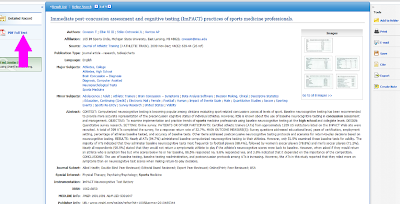
Here is an example for a search for articles on concussions in high school sports from journals that have been peer-reviewed:
If you are on campus, go to the Online Databases page and select the link for EBSCOhost. If you are off-campus, be sure to select the link for off-campus at the top of the page; type in your credentials, and then select the link for EBSCOhost.
Once you are within EBSCOhost, place a check beside the database(s) that you would like to search. For our example, Academic Search Premier and Cinahl Plus with full text were checked. Then select "Continue".
The screen that appears is the basic search screen.
Instead of using this screen, click on the Advanced Search screen. (Click on image to enlarge.)


Now, let's input our search terms and check the limiters that apply: (Click on image to enlarge.)

For our example, 9 results were found: (Click on image to enlarge.)

The 3rd article looks interesting. Click on the full text to read the entire article. (Click on image to enlarge.)

Be sure to check back for more LRC tips!
Friday, December 23, 2011
Another LRC Quick Tip
Have you ever written an absolutely brilliant paper but misplaced your flash drive? All is not lost, just copy your masterpiece and paste in your email or save (temporarily) on one of the LRC computers and add as an attachment to your email. Quick and easy!
Wednesday, December 7, 2011
Browsing electronic resources
LRC quick tip:
Have you ever wondered how to browse our eBooks and electronic resources?
Just select the SVCC card catalog from the home page; type in either electronic resources or eBooks as a search term; choose keyword; choose SVCC catalog; and hit enter. Now you will be able to scroll down and browse our collection.
Monday, November 14, 2011
Tuesday, October 18, 2011
Citation help
Another LRC Quick Tip:
If you need to cite something but have no idea how - check out EasyBib. We first let you know about this awesome resource from our home page’s Other Resources Links but thought it was worth rementioning.
You will be able to find EasyBib at the top right of the page in Credo Reference once a search is performed or at http://www.easybib.com/.
Wednesday, May 11, 2011

Tuesday, May 10, 2011
It's Not About the Book: Information Sharing in a Digital World
Recently a distinguished University Librarian at Stanford University published a column in a library trade journal in which he discussed the phenomenon of the ever-increasing availability of digital information sources. Paper is decreasing in popularity as the preferred medium of information sharing as more consumers turn to eBooks and online journals. In January of this year sales of e-books outpaced sales of paperbacks at Amazon.com. What are the implications for you as a Sauk Valley student, employee, or community member?
The Learning Resources Center is committed to providing the best possible library and media services to you in response to your individual and collective needs. Due to the increasing prevalence of digital research resources and their greater versatility compared to print resources, the LRC has developed a collection of databases that provide access to many thousands of articles covering a wide array of research topics. As e-books are made available in increasingly user-friendly formats we have purchased and will continue to purchase titles that support the Sauk Valley Community College curriculum. The overwhelming advantage of these formats is that they can be used by students off-campus, which is especially important to our distance learners.
We will also continue to purchase books that can be checked out and used by our patrons who prefer the tactile, page-turning experience. Our aim is not to abandon or ignore one format in place of another. The mission of the library has always been, and continues to be that of providing information to people when they need it, in the format best suits their needs. To that end we always welcome your suggestions and input, so that we can continue to make informed and responsive choices using the resources provided to us by the citizens of the Sauk Valley.
Tuesday, May 3, 2011
Getting the most out of SFX
Have you ever searched for a journal article and found a graphic that says “SFX”? Did you wonder what it was? Well, SFX connects citations from one Sauk database to another Sauk database via a link resolver. That way you do not have to search each and every database to locate your full text article; in a sense SFX does that for you. To learn more about SFX, click below.
Monday, April 25, 2011
Article Search
Sauk LRC quick tip!
Use "Citation Linker" to check online availability quickly using the article's citation information.
Find out how below.
Find out how below.
Monday, April 18, 2011
Research Tip: Effective Internet Searching
Make an effort to learn how your favorite search engine works. Search Engine Showdown offers a wealth of information about search engines and how they work, along with a chart that compares features of six popular search engines.
Learn about Boolean Logic as it applies to online searching. In essence, Boolean searching involves using the operators AND, OR, and NOT between search terms to either narrow or expand your information-seeking focus, so that your search results include information you need, and exclude information that is not helpful to you. Colorado State University Libraries have created a simple interactive tutorial to help users understand Boolean searching.
Use quotation marks around phrases. If you type the words occupational therapy in a search box, the search engine will find websites that contain both of those words anywhere. If you type the phrase “occupational therapy” in a search box, the search engine will find websites that contain those words together in that order.
Most, if not all, search engines feature an Advanced Search page that makes use of Boolean logic without requiring the user to design complicated search strings. They do this by offering multiple search boxes with the options to search for all of the words typed in the search box; at least one of the words typed in the search box; a complete phrase typed in the search box; or to exclude all of the words typed in the search box. Google’s Advanced Search link is located to the right of the basic search box, in small blue letters.
When in doubt, make use of the search engine’s help functions. Google’s Web Search Help Center can be found by clicking on more at the top of the basic search page, and then selecting even more from the drop-down menu. Web Search Features will open a page that gives hints on how to find specific types of information along with links to Basic Search and Advanced Search help and more.
Effective Internet searching is an acquired skill that requires time, patience, and practice. Make the effort to learn the tips and techniques provided by information professionals and editors of popular search engines. This will eventually pay dividends in terms of your increased efficiency and decreased frustration!
Monday, April 11, 2011
Term Paper Problems?
Having problems locating information for your term paper? Finding too much information? Don't even have a topic yet? Don't worry- the Librarians at SVC LRC are available to help! Just come in to the LRC to get assistance. We will be happy to help you with any information needs you have. Also, don't forget you can always text us - just text AskSVLRC to 66746 for instructions!
Subscribe to:
Posts (Atom)